Quick Start
Using the template project
Note
This is the fastest way if you are starting from scratch. It is also the best way to make sure that everything is set up correctly.
We provide a template project ready to use on Github. Make sure you have Unity Version 2021.2 or higher installed.
Click here for the template project on Github
You can either download it using git but for this purpose, just download it as a zip from Github works perfectly fine.
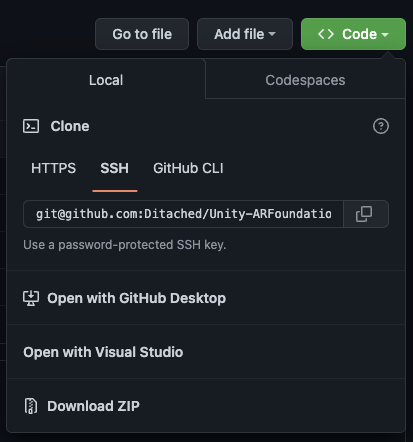
As it is a publicly accessible repo. The AR Placement Kit is not included in the project. You need to download it from the package manager. You can skip the Manually Setting up AR Foundation section when using the template project. Just move on to the SampleScenehttps://arplacementkit-docs.readthedocs.io/en/latest/installation.html#sample-scene. section.
XR Environment
Select XR Environment Preset
If Shaders are glitched
Navigation
Official Docs
Import TMP Essentials
Hit install
Install ARPlacementKit
Accept dependecies
Import everything
Sample Scene
Set phone resolution in Game view
In the package there is a sample scene. It is located in the folder Samples in the package. It is called ARPlacementKitSample. After opening it you should see the following hierachy:
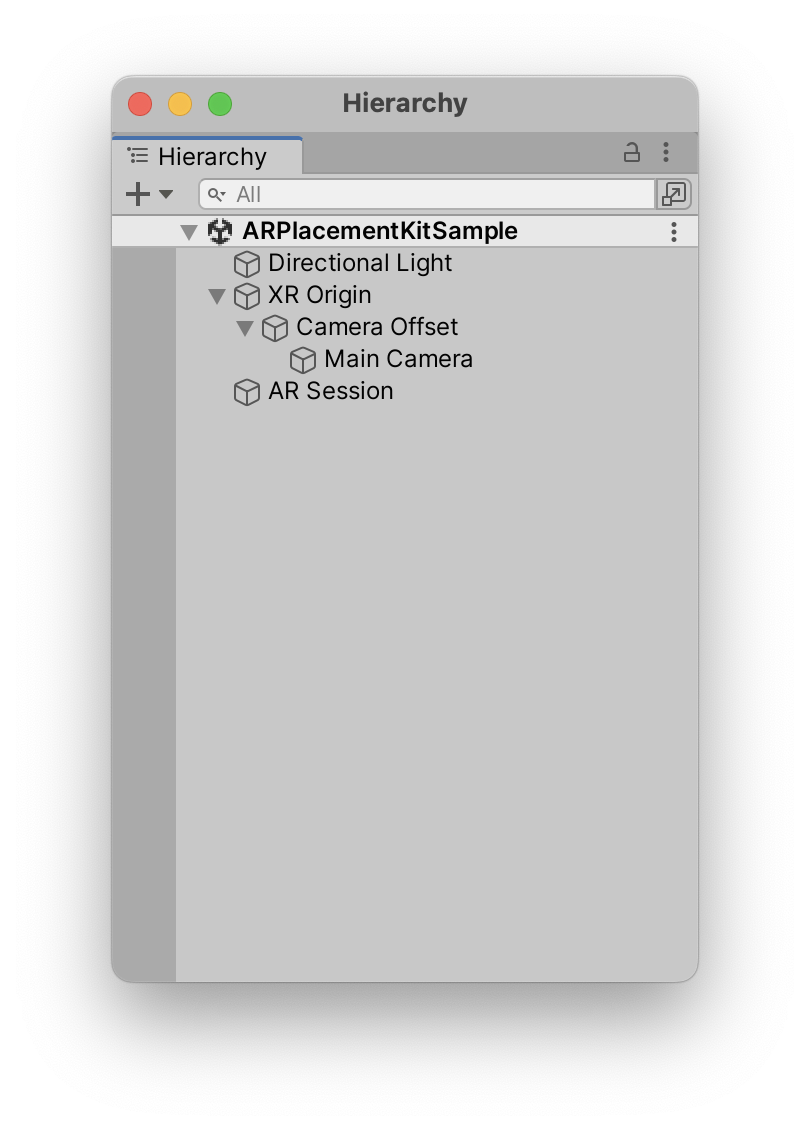
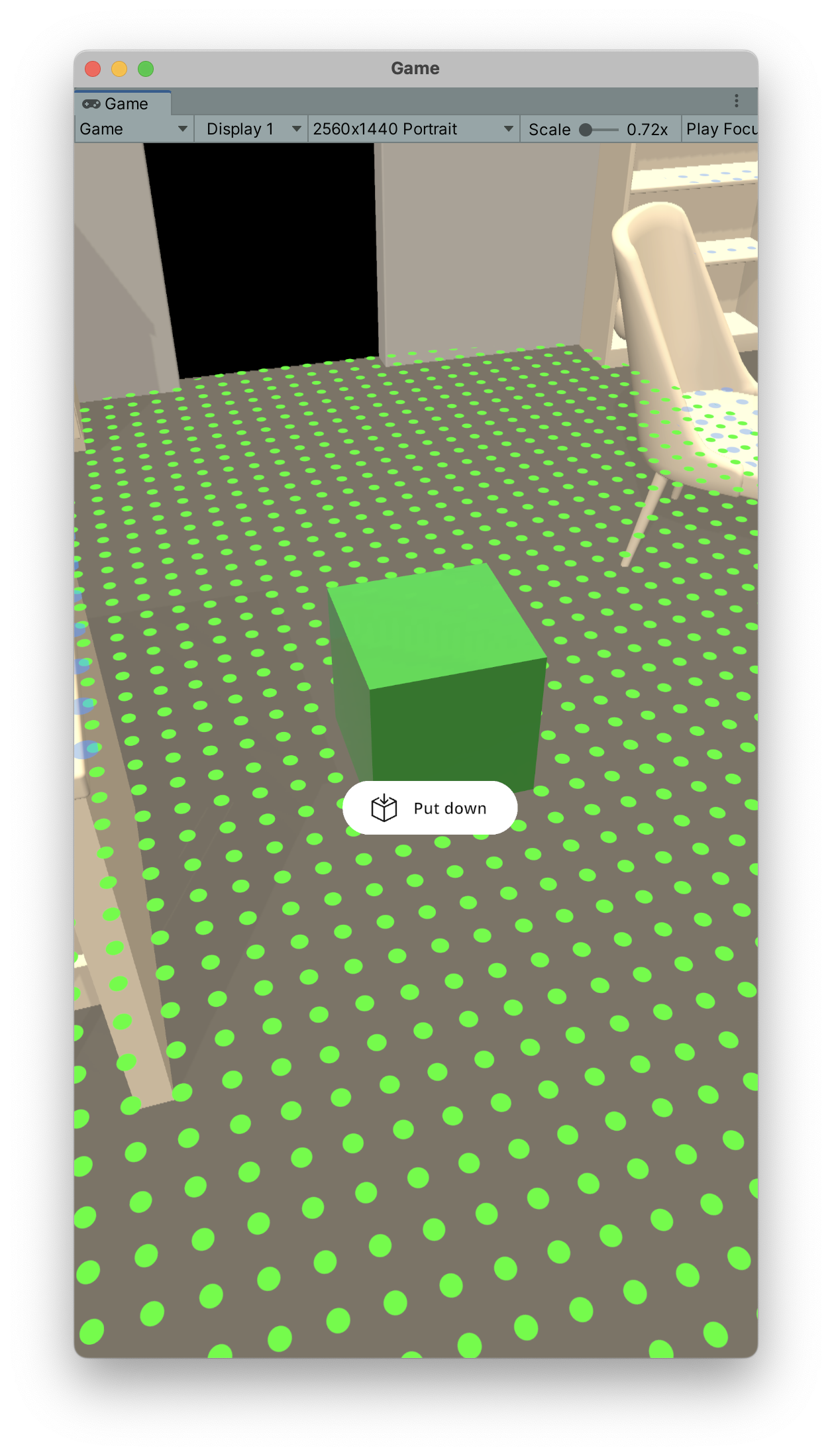
Before customizing anything, make sure to press Play if you have the XR Simulation enabled. Otherwise, create a build on your target device to validate that everything works. If you run into any troubles at this point, check out the troubleshooting section.
It should something like this.
Note
If this is your first time using the XR Simulation make sure to check out the documentation.
The two finger gestures for rotating and scaling will only work on an actual device. The XR Simulation* does not support it.